
Quick Start
Install
git clone https://github.com/oqtopus-team/qdash.git
cd qdash
Qubex Setup
Create the Qubex-backed environment file:
cp .env.example.qubex .envBefore starting services, edit .env if you need different ports, data directories, admin credentials, Qubex config repository settings, remote access settings, or Copilot provider credentials.
Qubex-backed workflows also need configuration files under CONFIG_PATH. With the default CONFIG_PATH="./config/qubex-config", put each chip's Qubex config tree at ./config/qubex-config/<chip_id>/, including config/, params/, and optional calibration/ directories. See the Qubex system configuration guide for the required files.
If your Qubex config is stored in a Git repository, set CONFIG_REPO_URL, GITHUB_USER, and GITHUB_TOKEN in .env so QDash can pull the latest config into CONFIG_PATH and push supported calibration updates back to the repository when workflow GitHub push is enabled.
Complete this Qubex config setup before running task deploy-local or task dev-local.
Install local dependencies after .env and Qubex config setup are ready:
task dev-local-setupThe setup task installs Python and UI dependencies and creates local data directories as needed.
Start the Application
For the full Docker Compose stack, run:
task deploy-localFor a lighter host-side development stack, run:
task dev-localYou can now access the application at localhost:5714 .
Sign in
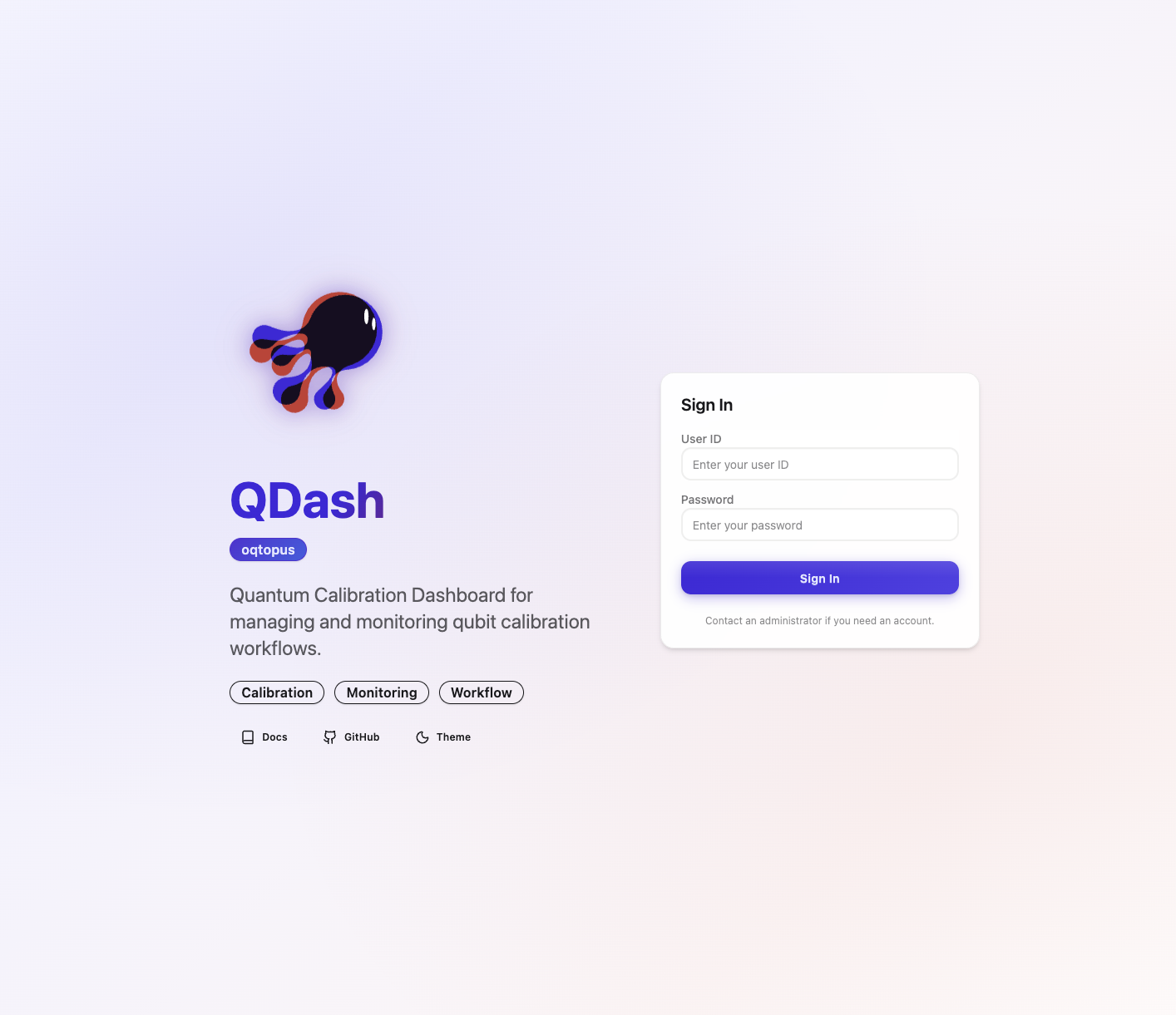
The default admin username and password are written in .env as QDASH_ADMIN_USERNAME and QDASH_ADMIN_PASSWORD. After signing in, the app redirects to the default authenticated page.
Remote access (Cloudflare Tunnel)
You can share QDash securely without opening extra ports by using Cloudflare Tunnel.
- Create a tunnel in the Cloudflare dashboard and copy the issued
TUNNEL_TOKEN. - Add the token to your
.envfile (e.g.TUNNEL_TOKEN=...). - Start the tunnel with
task deploy. - Confirm in the Cloudflare dashboard that the tunnel status is “Connected”.
Once connected, the hostname provided by Cloudflare (for example https://your-tunnel.example.com) will serve the same UI experience as http://localhost:5714, including charts and figures.